Claude and MetaTrader on a Mac or Linux, no VPS
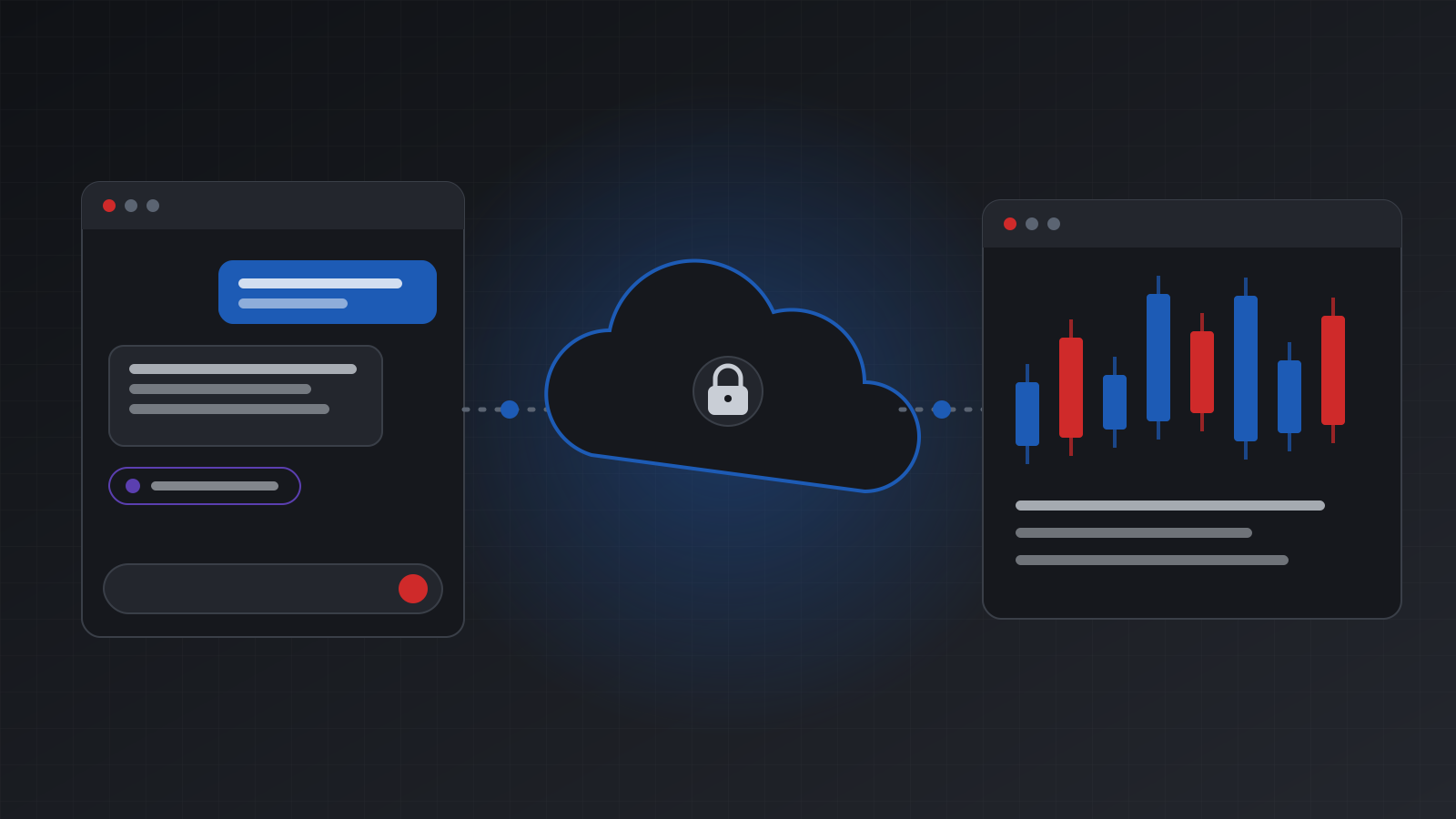
Tickwire hosts the MetaTrader terminal for you, so Claude can read and trade an MT4 or MT5 account from a Mac, Linux or any browser, with no Windows PC or VPS to run.
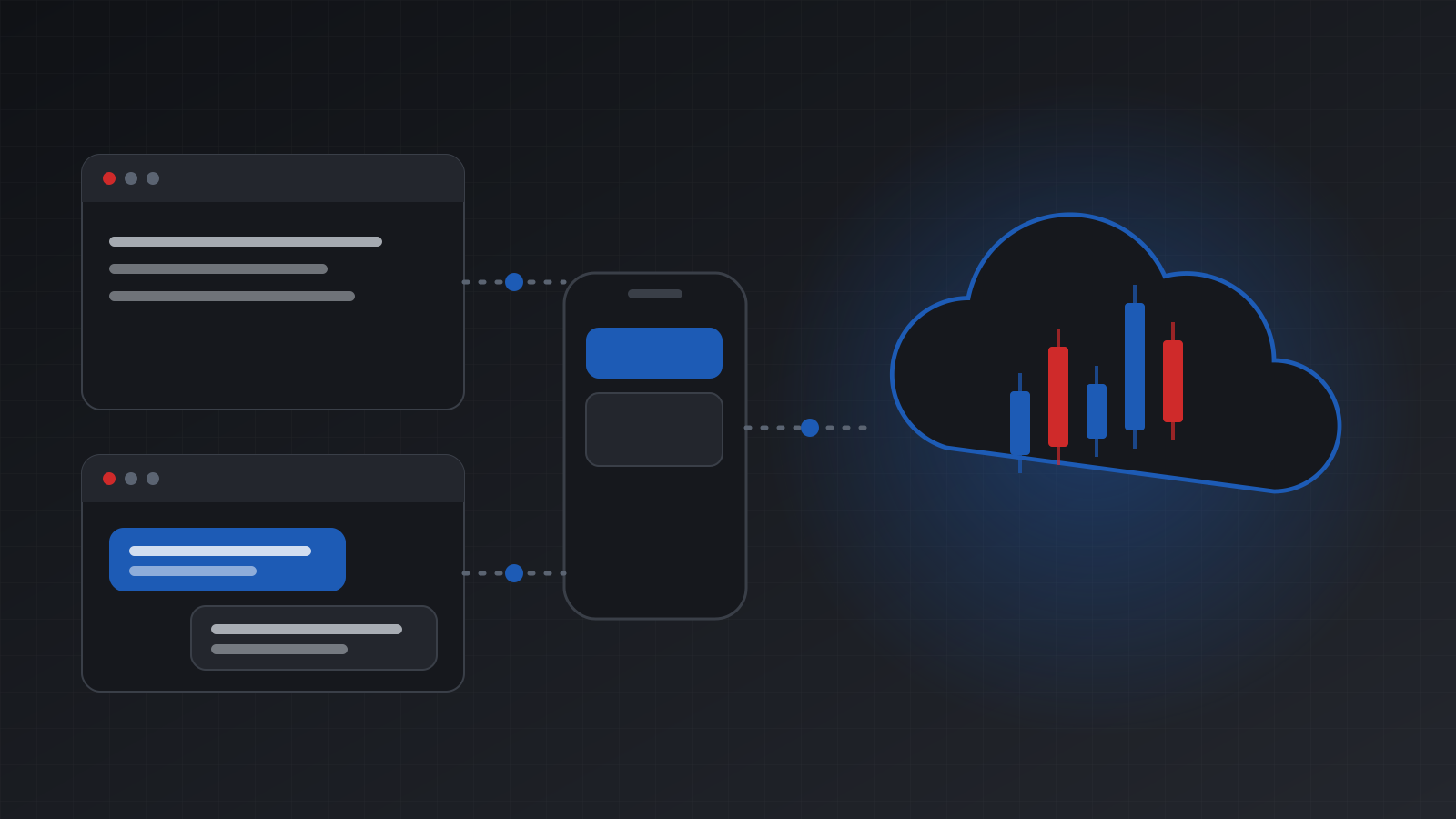
You can connect Claude to MT4 or MT5 without Windows or a VPS by using a hosted terminal. Tickwire runs the MetaTrader terminal for each account in the cloud and gives Claude an MCP server address, so you add one custom connector, sign in and choose what Claude may do. Your own computer can be a Mac, a Linux box or off.
Why this used to need Windows
The MetaTrader terminal is a Windows desktop app. Most ways of linking it to code assume the terminal runs next to that code: a script on the same PC, or a server inside the terminal. That means a Windows PC that stays on, or a Windows VPS you rent, patch and watch.
Claude makes this harder, not easier. Claude on claude.ai and in the desktop app reaches tools from Anthropic’s cloud, not from your computer. A terminal on your laptop, even one with the terminal’s built-in MCP support from MT5 build 6060, sits on a local address that Claude’s servers can’t reach. We compare the two in MT5 built-in MCP vs a hosted MCP server.
A hosted terminal removes both problems. The terminal runs on Tickwire’s servers, logged in to your broker account, and the MCP server is on the public internet at:
https://api.tickwire.io/mcpThree ways to connect Claude
| You use | How it connects | Key needed |
|---|---|---|
| Claude on claude.ai or the desktop app | Custom connector, then sign in | No |
| Claude Code on a Mac or Linux | claude mcp add with an agent key | Yes, a twag_ agent key |
| Your own agent with the Claude Agent SDK | An MCP server entry with an agent key | Yes, a twag_ agent key |
Claude on claude.ai or the desktop app
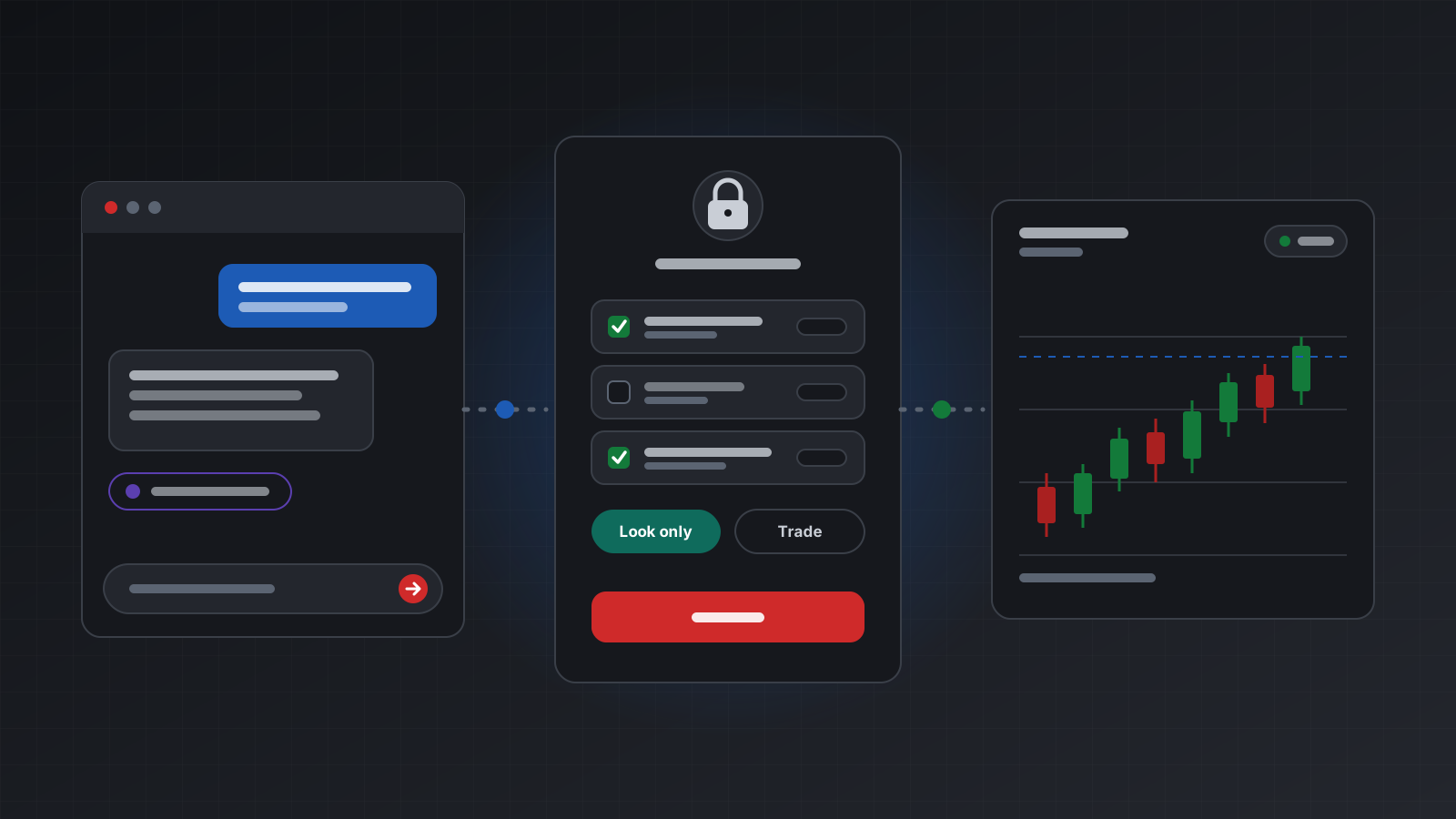
Open Customize, then Connectors, press + Add and choose Add custom connector. Name it Tickwire, paste the address and press Continue, keep the sign-in settings and press Add. Tickwire’s sign-in page opens: pick the accounts Claude may use, choose Look only or Look and trade, and press Allow. In a chat, turn the connector on from the + menu.
The full walk-through, with Team and Enterprise steps and safe first questions, is in the guide to connect Claude to MT5 or MT4.
Claude Code on a Mac or Linux
Create an agent key in the dashboard under AI agents > Keys, scoped to the accounts you want and read-only to start. Then:
claude mcp add --transport http tickwire https://api.tickwire.io/mcp \
  --header "Authorization: Bearer $AGENT_KEY"
Keep the key in an environment variable or a secret store, never in a repository. It is shown once.
Your own agent with the Claude Agent SDK
import asyncio, os
from claude_agent_sdk import query, ClaudeAgentOptions

options = ClaudeAgentOptions(
    mcp_servers={
        "tickwire": {
            "type": "http",
            "url": "https://api.tickwire.io/mcp",
            "headers": {"Authorization": f"Bearer {os.environ['AGENT_KEY']}"},
        }
    },
    allowed_tools=[
        "mcp__tickwire__list_accounts",
        "mcp__tickwire__get_account_health",
        "mcp__tickwire__get_positions",
    ],
)

async def main():
    async for message in query(prompt="Show the health and open positions of my first account.",
                               options=options):
        print(message)

asyncio.run(main())
Give the agent only the tools it needs. A reader should not even see place_order. More in the AI agent guide.
MT4 works too
The same tools work on MetaTrader 4 accounts. Add the account with "platform": "mt4" and Claude sees it in list_accounts next to your MT5 accounts. A few MT5 features, such as market depth and tick history, answer not_supported_on_mt4 instead of made-up data. See MT4 vs MT5 for algo trading.
What stays in your hands
A hosted terminal moves the hardware away, not the control. You still decide:
- which accounts Claude can see, at sign-in or in the agent key;
- look only or look and trade. A look-only key that tries to trade gets
read_only_key, and nothing reaches the broker; - when to stop it. A kill switch per key and per account stops every order at once, whatever Claude does;
- what it did, in the audit log: the time, the tool, the reason and the result of each change.
Test on a demo account first. Ask Claude to read before you let it trade. The MetaTrader MCP server page lists the tools Claude gets.
Frequently asked questions
Can I use Claude with MetaTrader on a Mac?
Yes. With Tickwire the MetaTrader terminal runs in the cloud, so Claude on claude.ai, the Claude desktop app for Mac, or Claude Code can reach your MT4 or MT5 account. Nothing MetaTrader related runs on the Mac.
Do I need a VPS to keep Claude connected to MT5?
No. Tickwire keeps the terminal running for you. Claude connects to the hosted MCP server whenever you use it, and your own computer can be off in between.
Does Claude need my broker password?
No. You give the broker login to Tickwire once, when you add the account. Claude only gets a limited key from the sign-in, or the agent key you create, scoped to the accounts you pick.
Does this work with MT4 as well as MT5?
Yes. The hosted MCP server serves MT4 and MT5 accounts through the same tools. Features MT4 lacks answer not_supported_on_mt4.
Can I connect Claude Code instead of the chat app?
Yes. Create an agent key in the Tickwire dashboard and add the server with claude mcp add and an Authorization header. The key can be read-only and limited to chosen accounts.
What does it cost?
The MCP server is included with every Tickwire plan. Accounts start at $12 a month each, after a 7-day free trial. See pricing.
Trading carries risk, and you can lose money. This post explains software and how it behaves; it is not investment advice.