How to connect Claude to your MT4 or MT5 account
Step by step: add a MetaTrader account to Claude as a custom connector, sign in, choose Look only or Look and trade, ask safe first questions, and know how to cut it off.
Claude can read and trade a MetaTrader account, but only through a tool you add yourself. In Claude that tool is called a custom connector: the address of a remote server that speaks MCP (the Model Context Protocol, an open standard for giving AI apps tools). The server holds the connection to your trading account. Claude only sees what the server offers and what you allow.
This guide walks through the whole setup, from the first click to the stop button. It covers what you need, how to add the connector, how sign-in and access choices work, which questions to ask first, what to check before you approve an order, and how to disconnect.
Claude’s menus change from time to time. The Claude steps below follow Anthropic’s help center as of October 2026. If a menu has moved, the help center is the place to check.
What you need before you start
- A Claude account. As of October 2026, Anthropic says custom connectors work on the Free, Pro, Max, Team and Enterprise plans, on claude.ai and the Claude desktop app. The Free plan is limited to one custom connector.
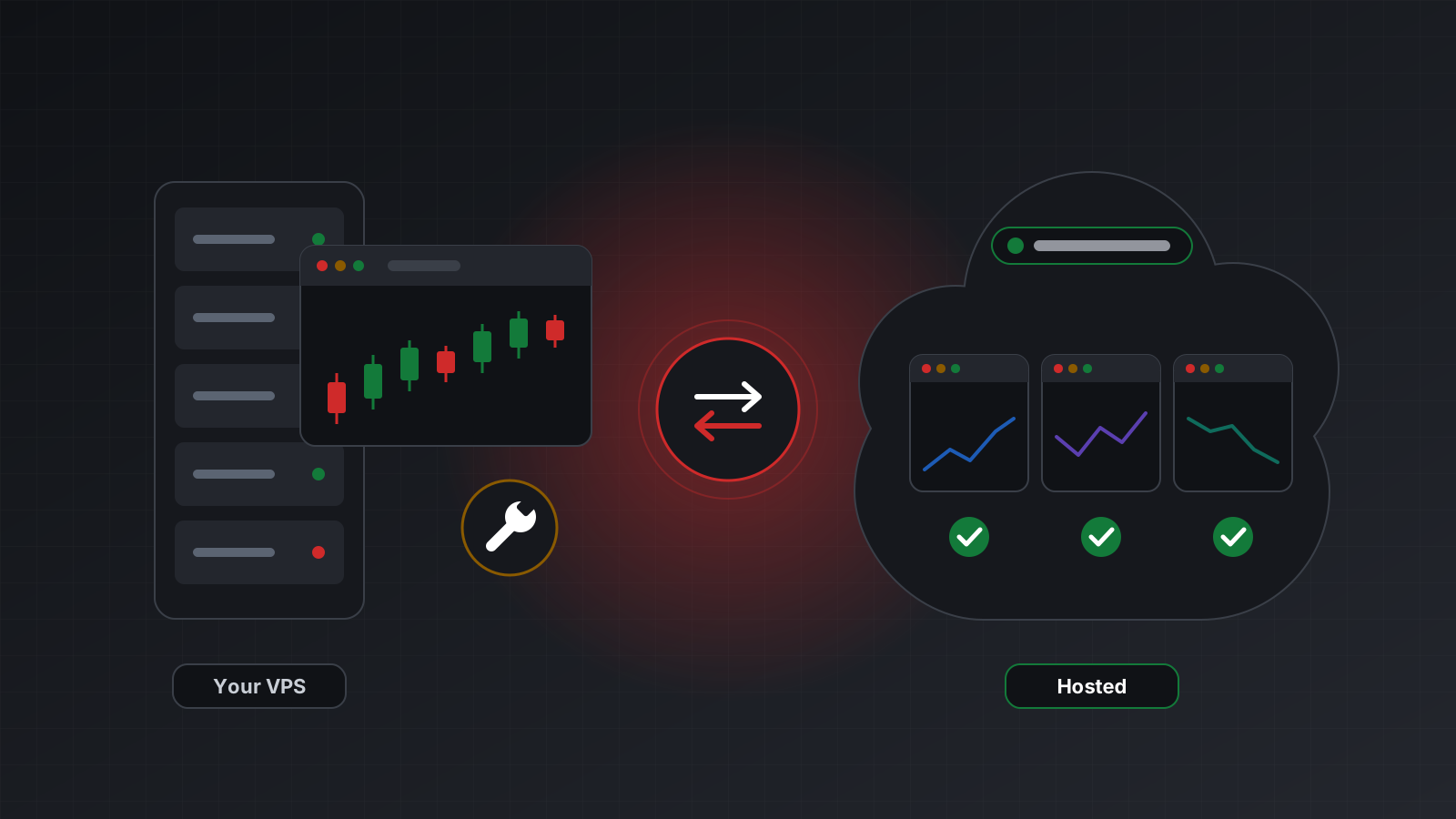
- A MetaTrader 4 or MetaTrader 5 account on a hosted terminal. Claude connects to remote servers from Anthropic’s cloud, not from your computer. A terminal running on your own laptop is not reachable that way. The server must be on the public internet.
- The server’s MCP address. For Tickwire it is
https://api.tickwire.io/mcp. - About ten minutes, and a plan for what you will let Claude do. Decide now whether this connection is for looking or for trading.
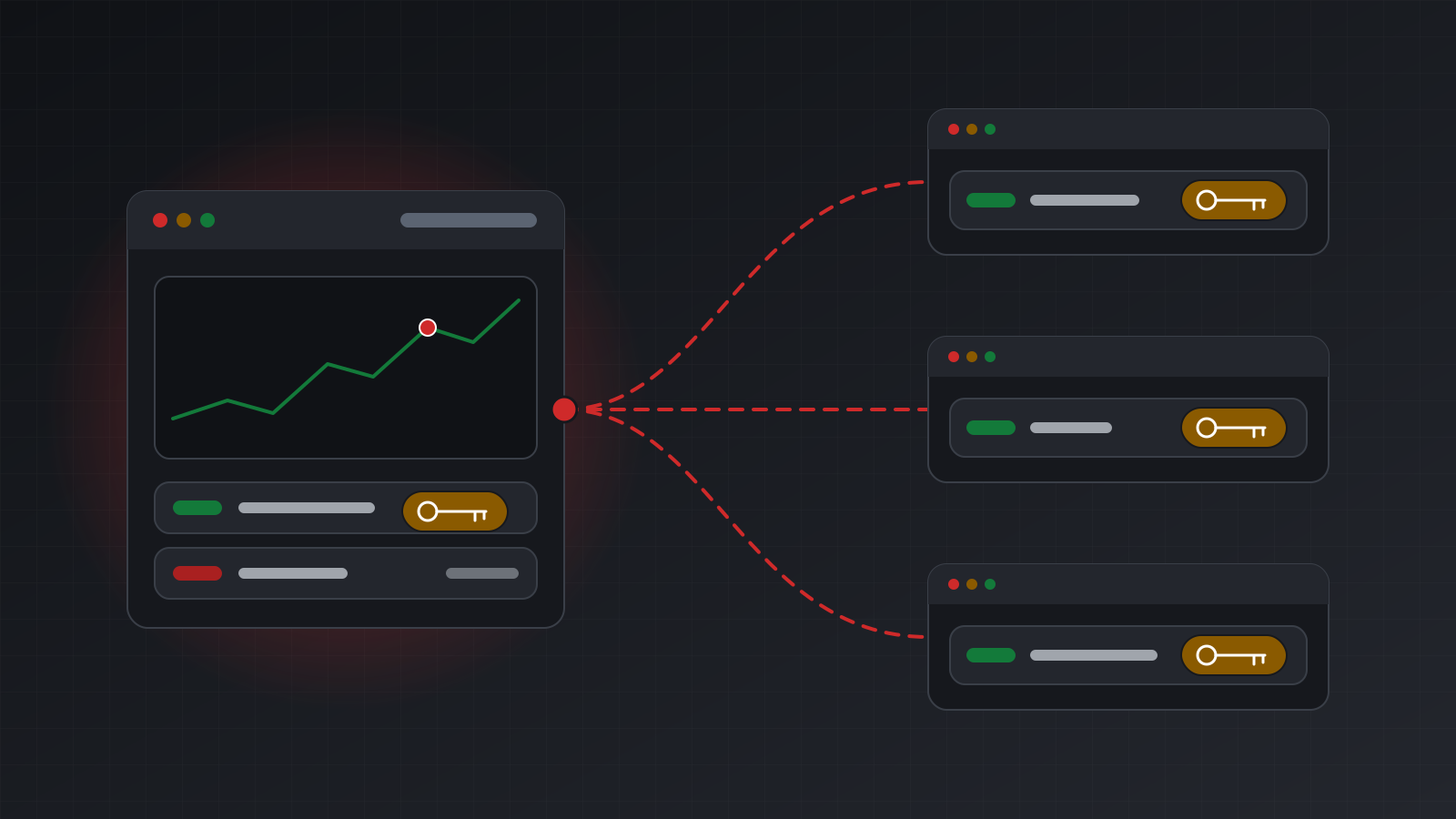
You don’t need an API key for this route. Claude signs in to the server the same way you sign in to a website, and you approve what it may reach.
Add the connector in Claude
On the Free, Pro and Max plans, as of October 2026:
- Open Customize > Connectors.
- Press + Add, then Add custom connector.
- Enter a name, for example “Tickwire”. This is the name you will see in your connector list.
- Paste the server address,
https://api.tickwire.io/mcp, and press Continue. - Claude detects the sign-in settings. Keep what it suggests and press Continue. Claude offers “Sign in now”, “Sign in when needed” or “No sign in”; this server uses sign-in. You don’t need to enter a client ID or a request header.
- Press Add.
On the Team and Enterprise plans the order is different. An owner adds the connector once for the organisation under Organization settings > Connectors. Each member then finds it under Customize > Connectors (it usually carries a “Custom” label) and presses Connect to sign in with their own login.
Anthropic’s help center adds a warning worth repeating: it does not verify custom connectors, so connect only servers you trust. See Anthropic’s guide to custom connectors.
Sign in and choose what Claude may reach
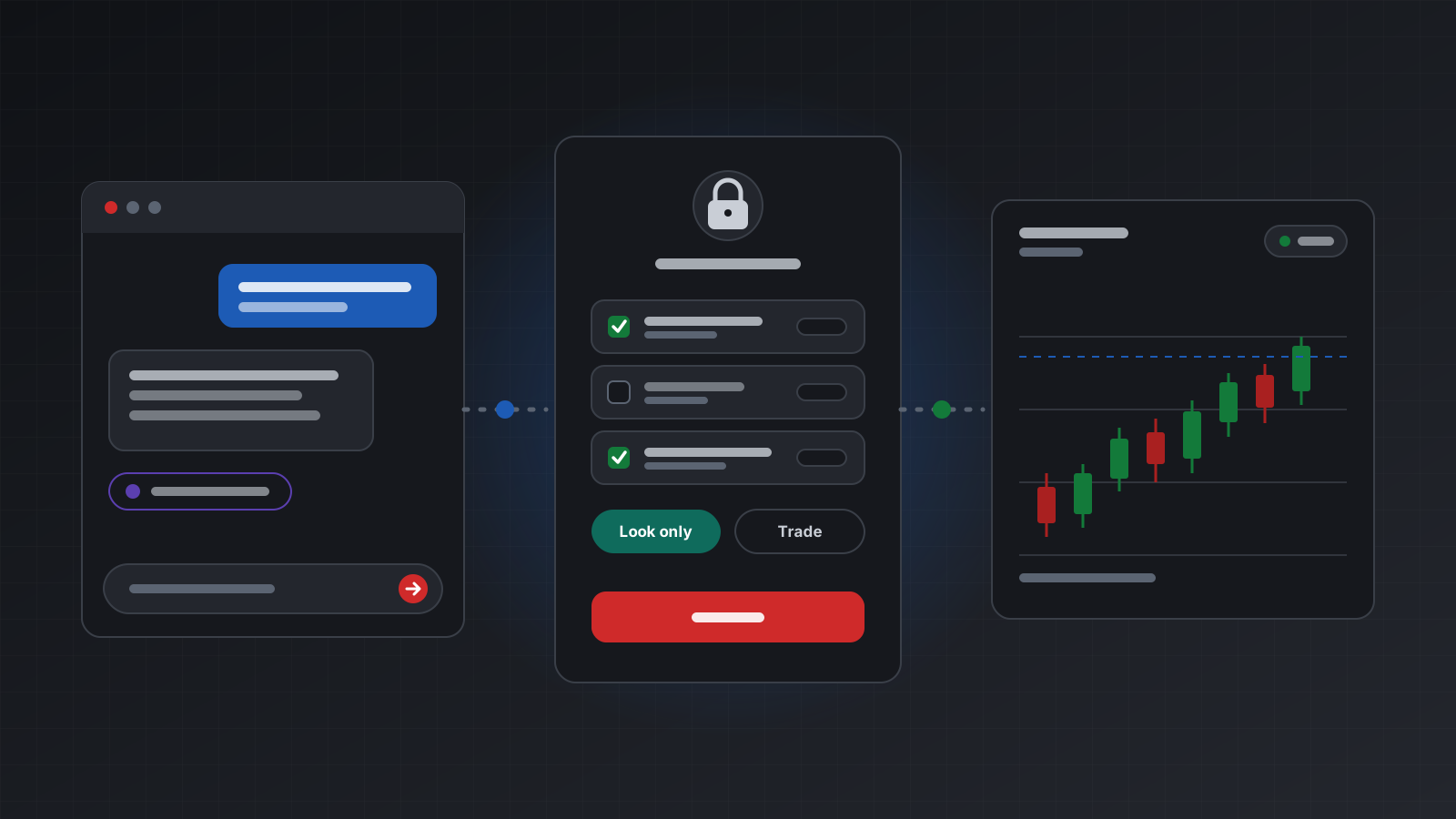
When you add or connect the connector, Claude opens the server’s own sign-in page in your browser. This is where the real permissions are set, so take your time:
- Sign in with your Tickwire login. Claude never sees your password.
- Pick the accounts. Tick only the accounts this connection should see. An account you leave out does not exist as far as Claude is concerned.
- Choose the access level.
- Look only: Claude can read balances, positions, orders, prices and history. Any attempt to trade is refused with
read_only_keyand nothing is sent. - Look and trade: Claude can also place, change and close orders, still subject to your kill switches and your pre-trade hook.
- Look only: Claude can read balances, positions, orders, prices and history. Any attempt to trade is refused with
- Press Allow.
Start with Look only, even if you plan to trade later. You can reconnect with Look and trade when you are ready, and a week of read-only use shows you how Claude reads your account before it can change anything.
Then open a chat, press + > Connectors, and turn the connector on for that conversation. Connectors are switched on per chat, so a chat where it is off cannot reach your account at all.
First prompts: questions, not orders
Your first messages should be read-only questions whose answers you can check against your terminal. They test the connection and they show you how Claude names things.
- “Which trading accounts can you see? Show the platform, server and login for each.”
- “What are your permissions on these accounts? Are you read-only? Is any kill switch on?”
- “Is my account connected right now? Show me the evidence, not just yes or no.”
- “What are my balance, equity and free margin?”
- “List my open positions with symbol, side, volume in lots, open price, stop loss and take profit.”
- “What is the current bid and ask for EURUSD, and when was that price received?”
Behind these questions are tools such as list_accounts, get_agent_permissions, get_account_health, get_account_info, get_positions and get_quote. A lot is a standard unit of trade size; 1.00 lot of a currency pair is usually 100,000 units of the base currency, so check the units in every answer.
Compare each answer with what your terminal shows. If the balance, the positions or the times don’t match, stop and find out why. Health deserves special attention: the honest answers are connected, disconnected or unknown, and unknown means the terminal could not be asked, not that everything is fine.
For more on wording, see safe prompts for an AI trading assistant.
What a confirmation looks like
There are two separate checks between a message and an order. It helps to know which is which.
Claude asks you
Claude can ask you to approve a tool call before it runs. Anthropic’s help center says to review these approval requests carefully and to use “Allow always” only for servers and tools you are comfortable having run unsupervised. For a tool that places orders, approving each call is the safer habit. You can also switch off tools you don’t need in a conversation from Claude’s “Search and tools” menu.
Before you approve a place_order call, check every value Claude is about to send:
| Field | What to check |
|---|---|
| Account | The account you meant, not the first one in the list |
| Symbol | Your broker’s exact name, including any suffix |
| Side and type | Buy or sell; market, limit or stop |
| Volume | In lots. 0.10 and 1.0 are one slip apart |
| Stop loss and take profit | Absolute prices, on the right side of the entry |
| Reason | One sentence that matches what you asked for |
A useful prompt is: “Show me exactly what you would send, but don’t send it yet.” Then confirm in a separate message.
The server answers
Once an order call runs, the answer carries an outcome. applied means the terminal confirmed it, with evidence such as an order or position id. rejected means it was not executed. held means your pre-trade hook is holding it for approval and nothing has been sent. unknown means it may have executed. After unknown, Claude should check the trade status, positions and orders before doing anything else, and must never resend with a new request id. Tickwire’s MCP server gives the model these rules in its instructions, but read the outcome word yourself. Details are in idempotency and a retry should never place a second trade.
Disconnect, and the stop buttons
You can end or narrow access from either side, and you should know all of the options before you need one.
- In the Tickwire dashboard, open Connected apps. It lists each app you connected by sign-in, with its access level and how many accounts it may use. Disconnect stops it at once. To change the accounts or the access level, disconnect and sign in again with new choices.
- In Claude, open Customize > Connectors, find the connector and remove it. Anthropic notes that to change a connector’s details you remove it and add it again.
- Kill switches stop trading at once, without touching either app’s settings. The account kill switch stops every AI agent on that account, whether it connected by sign-in or with a key. An engaged switch answers
kill_switch_engagedand nothing is sent. Your own API keys keep working, so you can still close positions by hand.
When something is refused, read the code before you change anything. read_only_key, kill_switch_engaged and hook_denied are decisions you made. They mean the controls are working, not that Claude is broken.
Checklist
- Hosted terminal, reachable from the internet
- Connector added with the address
https://api.tickwire.io/mcp - Signed in, only the accounts this connection needs
- Look only for the first week
- Connector turned on only in the chats that need it
- First prompts were read-only, and the answers matched the terminal
- Every order approved by hand after checking account, symbol, side, lots and stops
- You know where Connected apps and the kill switches are
- Practise on a demo account before you risk money
Doing this with Tickwire
Tickwire hosts one real MT4 or MT5 terminal per trading account and offers the MCP server used in this guide. We connected the Claude app to Tickwire through sign-in on 20 October 2026. The same tools work on both platforms; the few things MT4 can’t do answer not_supported_on_mt4 instead of returning made-up data.
Tickwire has no built-in size or loss limits, and it gives no investment advice. If you want rules such as a maximum volume or a daily loss limit, put them in a pre-trade hook on your own server. The full list of tools and the ChatGPT steps are on the AI agents page, and the MetaTrader MCP server page explains how the server works.
Trading carries risk, and you can lose money. This post explains software and how it behaves; it is not investment advice.