Why your AI assistant says it can't trade
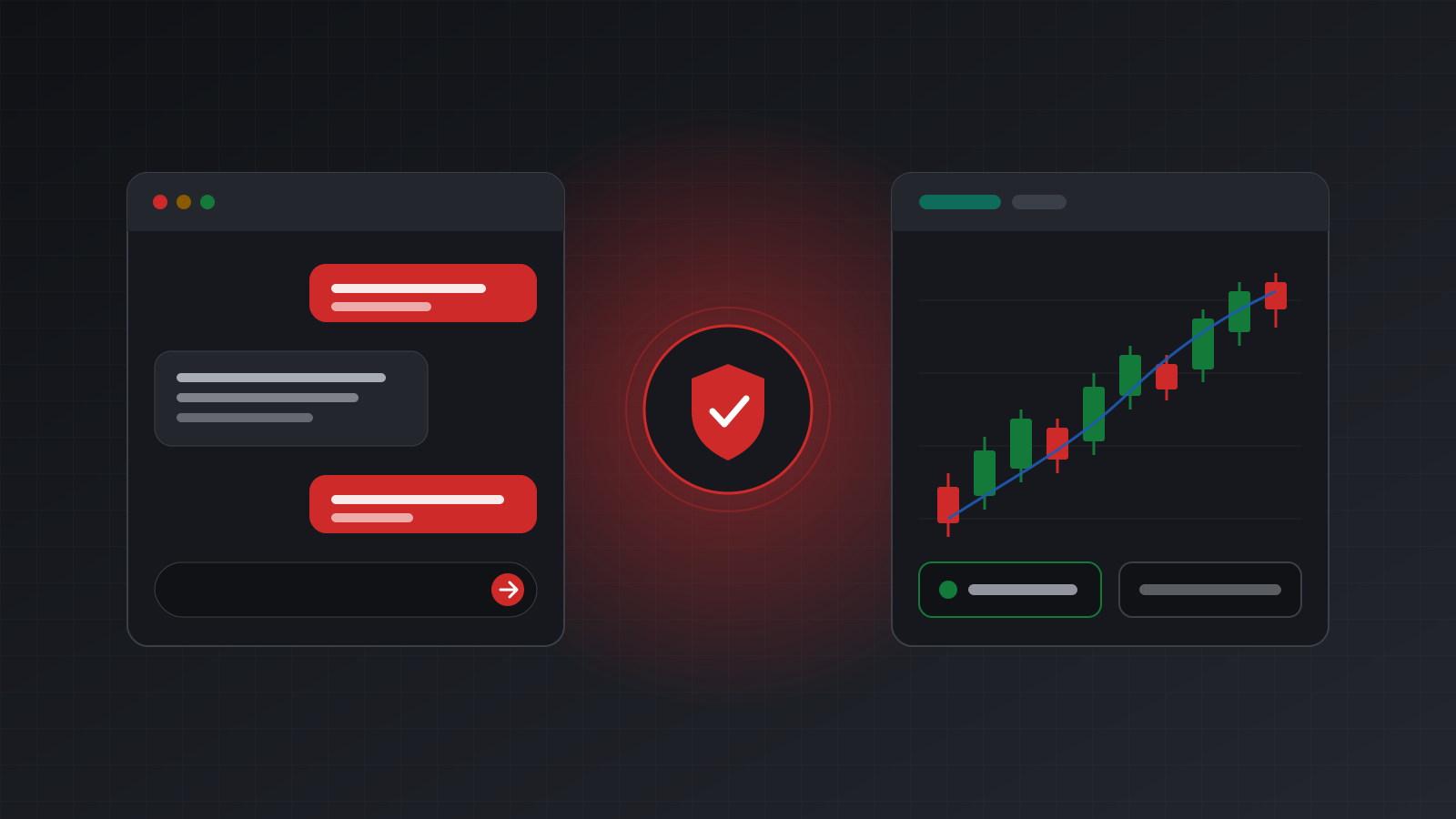
Why chat assistants refuse to place trades: no broker connection by default, safety rules, the need for an explicit tool, and confirmations for consequential actions.
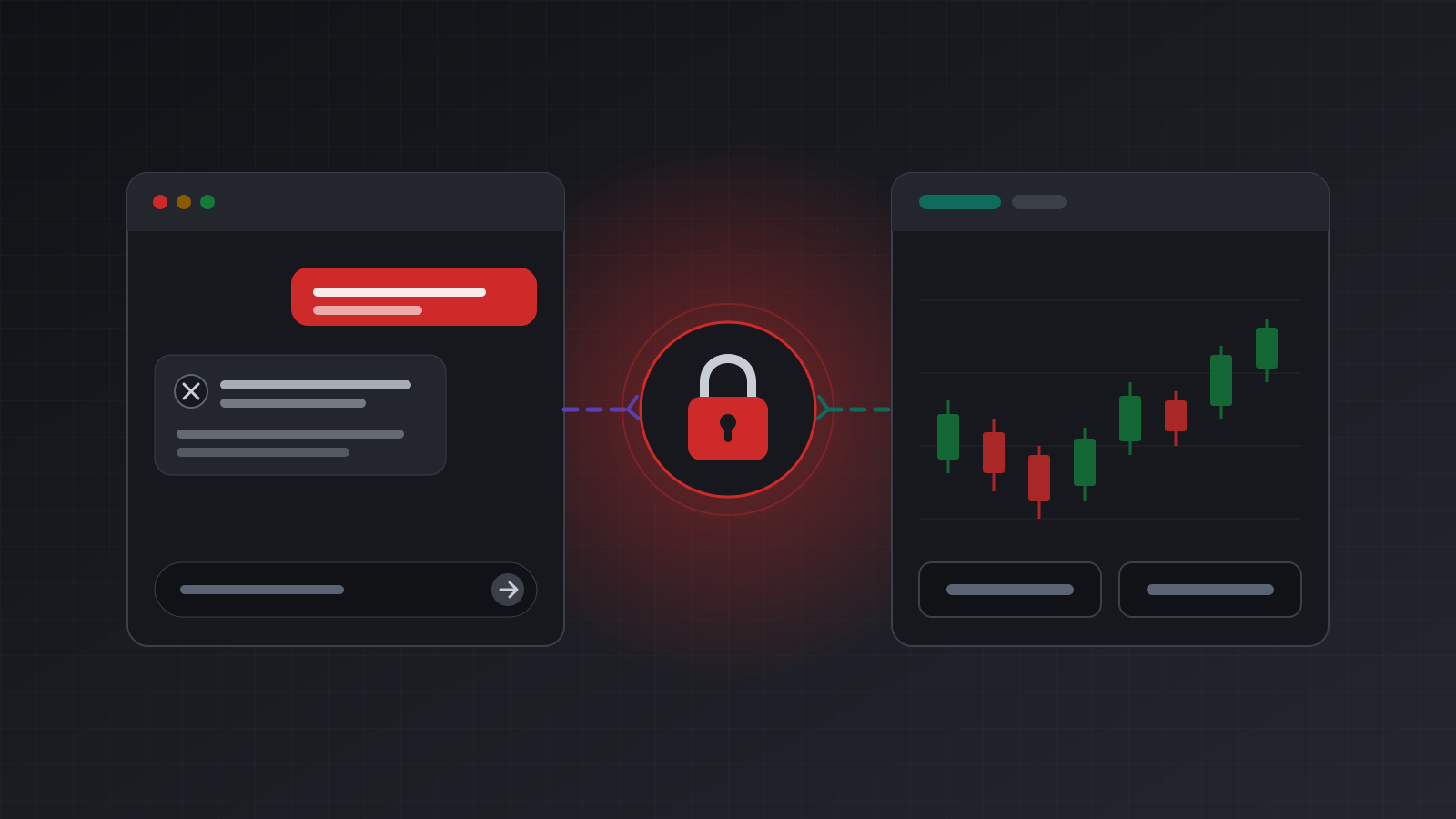
You open your AI assistant and type “buy 0.1 lots of EURUSD with a stop at 1.0700”. It answers that it can’t place trades, or it explains how you could do it yourself. That can feel like the assistant is being unhelpful. Usually it is just being accurate.
There are four separate reasons an assistant refuses, and they stack. Some are about plumbing, some are about policy, and one is a feature you will want to keep even after you connect a trading account.
This post explains each reason in plain terms, what changes once you connect a tool, and why some refusals are worth keeping.
Reason 1: it has no connection to your broker
A chat model is a program that reads text and writes text. It does not have a MetaTrader terminal, a broker login or a network link to your trading account. When you ask it to buy, there is literally nothing on its side that could send an order.
It helps to be precise about what an order needs. On MT4 or MT5, a trade request goes from a logged-in terminal to the broker’s trade server. The terminal holds your account number and password, keeps the session alive and receives the broker’s answer. The model has none of that unless something gives it a way in.
Features such as web browsing do not change this. Browsing lets an assistant read public pages. It does not log into your terminal, and you should not want it to type your broker password into anything.
So the first and most common answer is the simplest: by default, no assistant has access to a broker.
Reason 2: safety rules around money
The second reason is policy. AI vendors publish usage policies, and models are trained to be careful with actions that have real-world consequences, such as moving money or changing someone’s financial position. Placing a trade is exactly that kind of action.
Two habits follow from this:
- Not pretending. A model that says “Done, I bought 0.1 lots” without having done anything would be far worse than one that refuses. Assistants are trained not to claim actions they did not take. If you ever see a confirmation with no tool call behind it, treat it as made up.
- Not advising. Most assistants will explain how an order type works, but will not tell you that a specific trade is a good idea for you. That is personal financial advice, and it is not something a general chat app is built or licensed to give.
These rules do not mean an assistant can never trade. They mean it should only do so through a proper, visible route that you set up and approve.
Reason 3: it needs an explicit tool
Modern assistants can use tools: small, named actions with defined inputs, such as get_quote with a symbol, or place_order with a symbol, side and volume. The model decides to call a tool, the app runs it, and the result comes back into the chat.
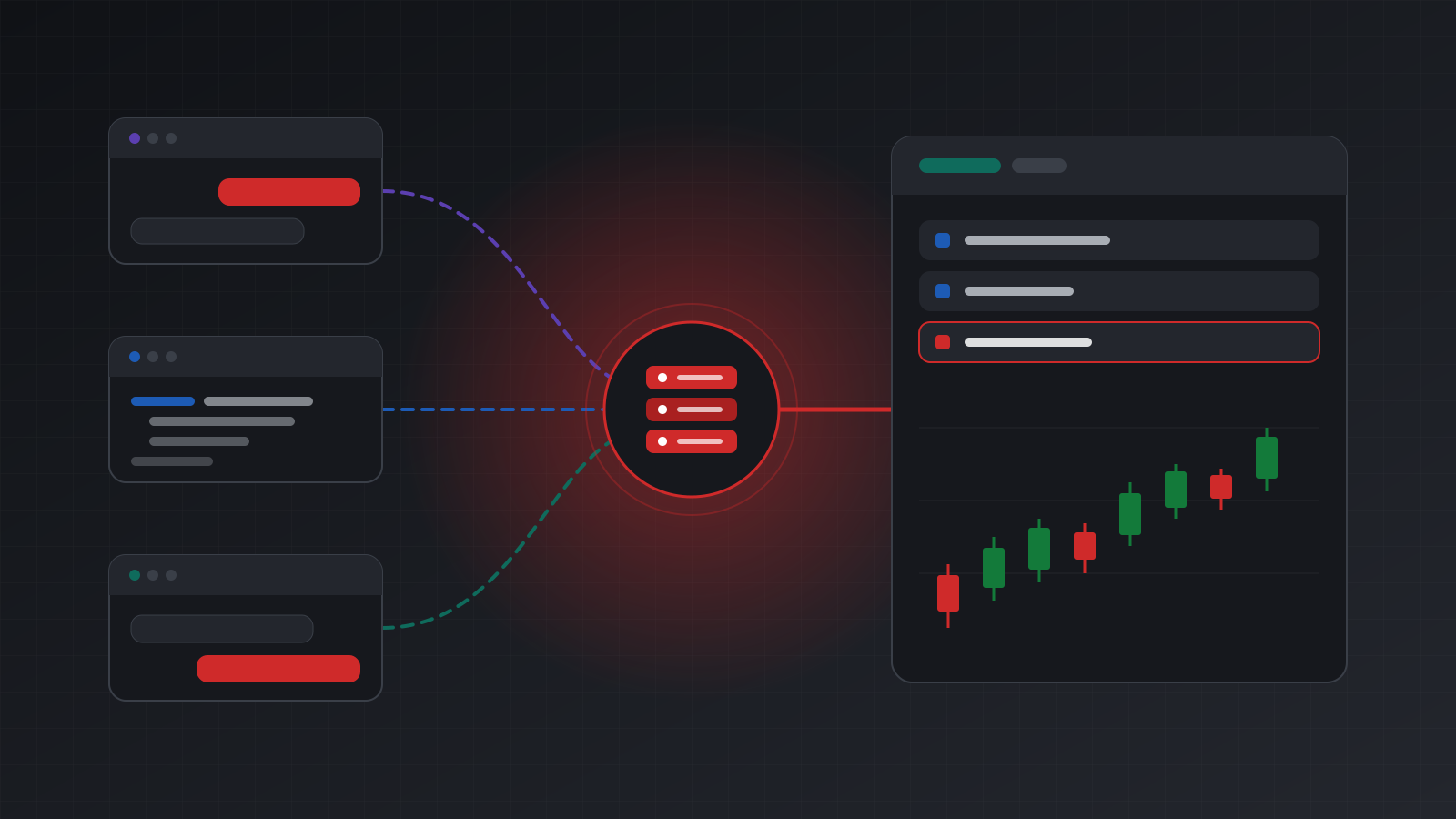
The common standard for this is MCP, the Model Context Protocol. An MCP server is a service that offers tools. You add the server to your AI app (often called a “connector”), and the app shows the model the list of tools and what each one expects. More on how that works in what MCP is, and why traders should care.
Without a trading tool in that list, the model has nothing to call, so it says no. Even with a connector added, check two things:
- Is the connector turned on in this chat? In several apps you add a connector once, then switch it on per chat. In Claude, for example, you turn it on from the connectors menu in the chat.
- Does the connector actually have a trade tool, and permission to use it? Many trading connections are read-only by default. The model can see your positions but cannot change them.
As of October 2026, Claude, ChatGPT, Gemini and Grok all document ways to add your own remote MCP server, with different plan rules. The details are in which AI apps can place trades on MT4 and MT5.
Reason 4: consequential actions need your confirmation
Even with a trading tool connected and permission granted, the app will usually stop and ask you before it acts. This is deliberate, and it is documented by the vendors:
- Anthropic’s help center tells Claude users to review tool approval requests carefully before approving them (custom connectors).
- OpenAI’s documentation says ChatGPT currently requires manual confirmation before write actions (OpenAI MCP docs).
- Google’s help page says Gemini currently requires manual confirmation for any write action (Gemini Apps Help).
All three were checked in October 2026. An assistant that asks “Place a market buy of 0.1 lots of EURUSD with a stop loss at 1.0700?” is not refusing. It is giving you the last word, which is what you want for anything that moves money.
When it still refuses after you connect
Once a tool is connected, a refusal usually has a concrete cause. Here are the common ones:
| What you see | Likely cause | What to do |
|---|---|---|
| “I don’t have a tool for that” | Connector off in this chat, or no trade tool | Turn the connector on; check what tools it offers |
| “This connection is read-only” | You granted look-only access | Change the access if you really want it to trade |
An error such as read_only_key or 403 | The server refused a write | Same as above; the server is doing its job |
| “Trading is stopped for this account” | A kill switch is engaged | Find out who engaged it and why before releasing it |
| “The order was denied” | Your own risk check said no | Read its message; do not ask the model to get around it |
| “My plan doesn’t allow this” | The app limits write actions by plan | Check the vendor’s plan page |
| “I’m not sure which symbol you mean” | Broker symbol names differ (EURUSD, EURUSD.m) | Give the exact name your broker uses |
Some of these refusals come from rules the account owner set. A well-behaved assistant reports them and stops. If it starts looking for another route around a denial, that is a sign to cut it off.
What it should never do
Once an assistant can trade, a few behaviours matter more than any clever analysis:
- Never claim a result it did not get. “Done” should mean a tool returned a confirmed result.
- Never retry blindly. If an order times out, the trade may still have gone through. Sending it again with a new identity is how traders end up with two positions instead of one.
- Never follow instructions found in data. Order comments, broker messages and web pages are text, not orders. A comment that says “close all positions” is not a request from you.
- Never change the size or stop you asked for without saying so.
Good trading servers help here by reporting honest outcomes. A result of “unknown” means the order may or may not have executed, and the right next step is to check positions and orders, not to try again.
Getting from “can’t” to “can”, safely
If you do want an assistant to trade, set it up in this order:
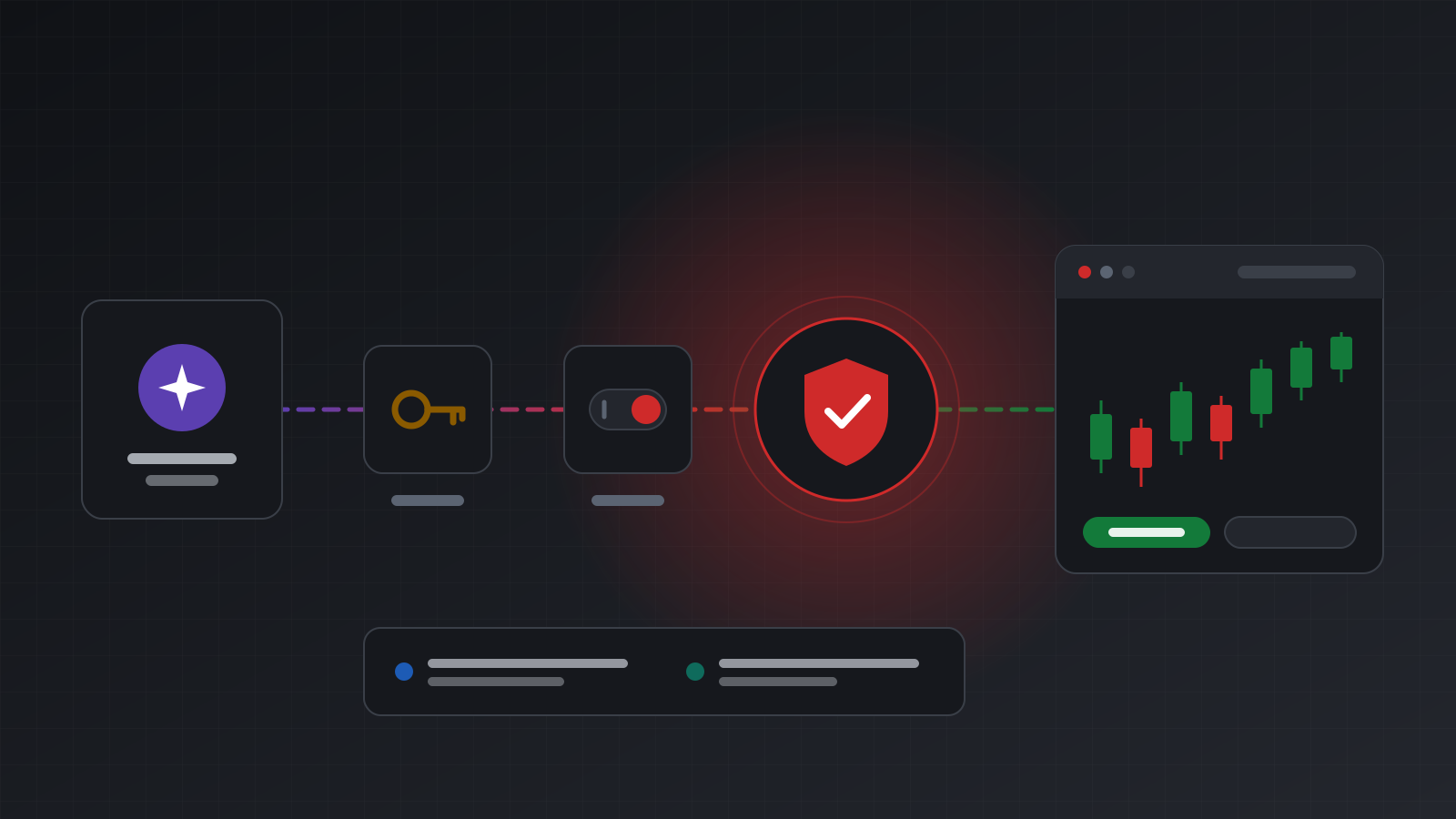
- Connect a trading account through an MCP server you trust.
- Start with read-only access. Ask about positions, balances and history for a while.
- Practise on a demo account before you risk money.
- Put your size and loss rules outside the model, where the server enforces them on every order.
- Turn on trading for one account, and keep the confirmation prompts on.
- Know where the stop button is before you need it.
Doing this with Tickwire
Tickwire hosts one real MT4 or MT5 terminal per trading account and offers an MCP server with tools such as get_positions, get_quote, place_order, close_position and get_trade_status. You connect an AI app by adding the address, signing in with Tickwire and choosing the accounts and “Look only” or “Look and trade”. We connected the Claude app this way on 20 October 2026; the ChatGPT steps on the AI agents page follow OpenAI’s documentation.
A read-only connection that tries to trade gets 403 read_only_key. Kill switches per agent and per account stop an agent at once, and a pre-trade hook on your own server can allow, deny or hold every agent order. Each trade needs a reason, recorded in the audit log, and outcomes follow the rules in idempotency. Tickwire gives no investment advice and does not judge whether a trade is good.
Key points
- By default an assistant has no connection to any broker, so it cannot trade.
- Vendor safety rules make it careful with money and stop it from claiming actions it did not take.
- It needs an explicit trade tool, turned on in the chat, with permission to write.
- Confirmation prompts before consequential actions are a feature, not a bug.
- After connecting, most refusals have a concrete cause you can read and fix.
Trading carries risk, and you can lose money. This post explains software and how it behaves; it is not investment advice.