Which AI apps can place trades on MT4 and MT5?
Which chat apps and developer tools can connect to a MetaTrader account and place orders, as of October 2026, and what to check before you let one trade.
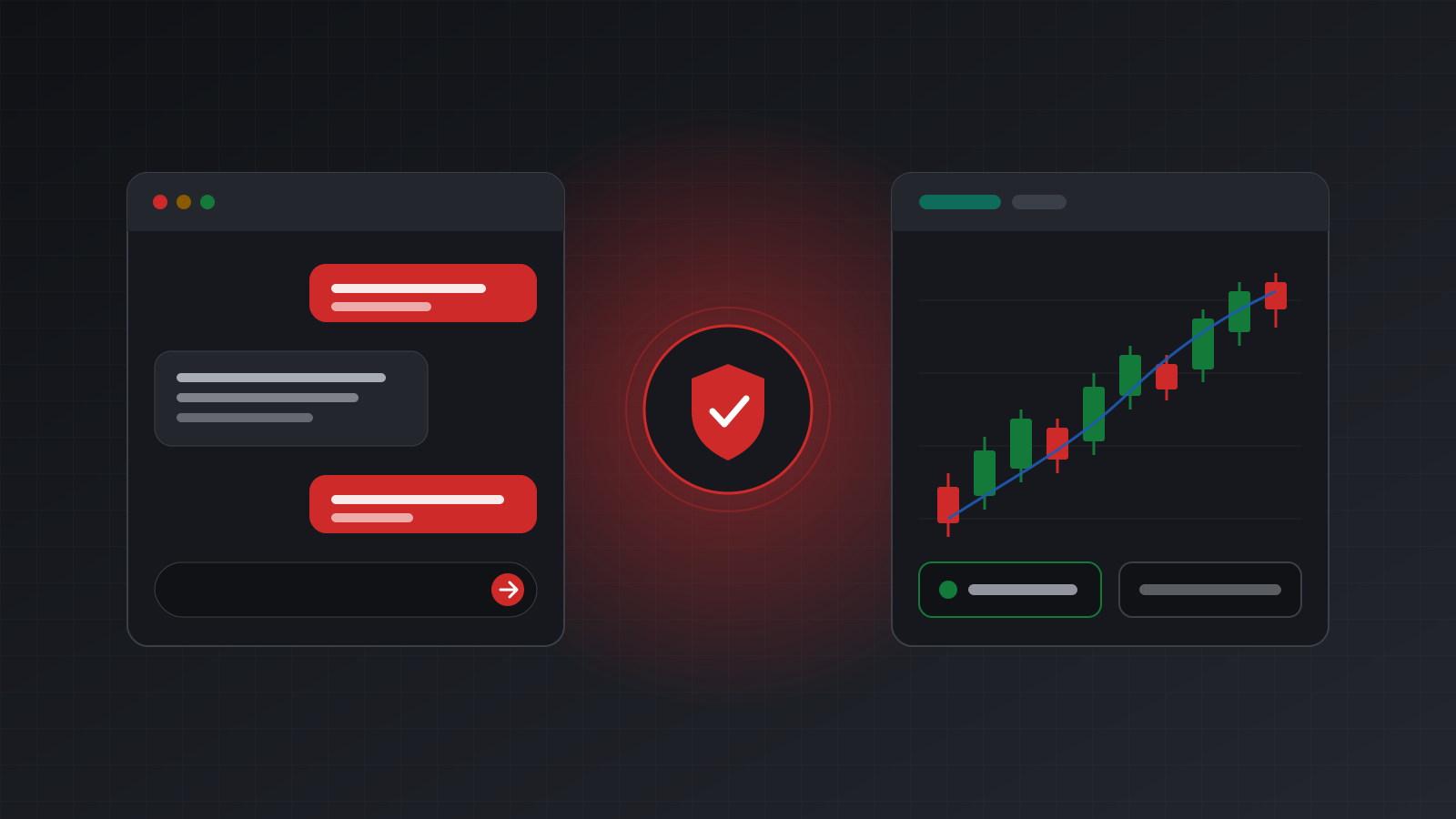
No AI app can place a trade on its own. A chat model writes text. To open or close a position on MT4 or MT5, the app has to be connected to a tool that reaches a real trading account, and you have to allow it to use that tool.
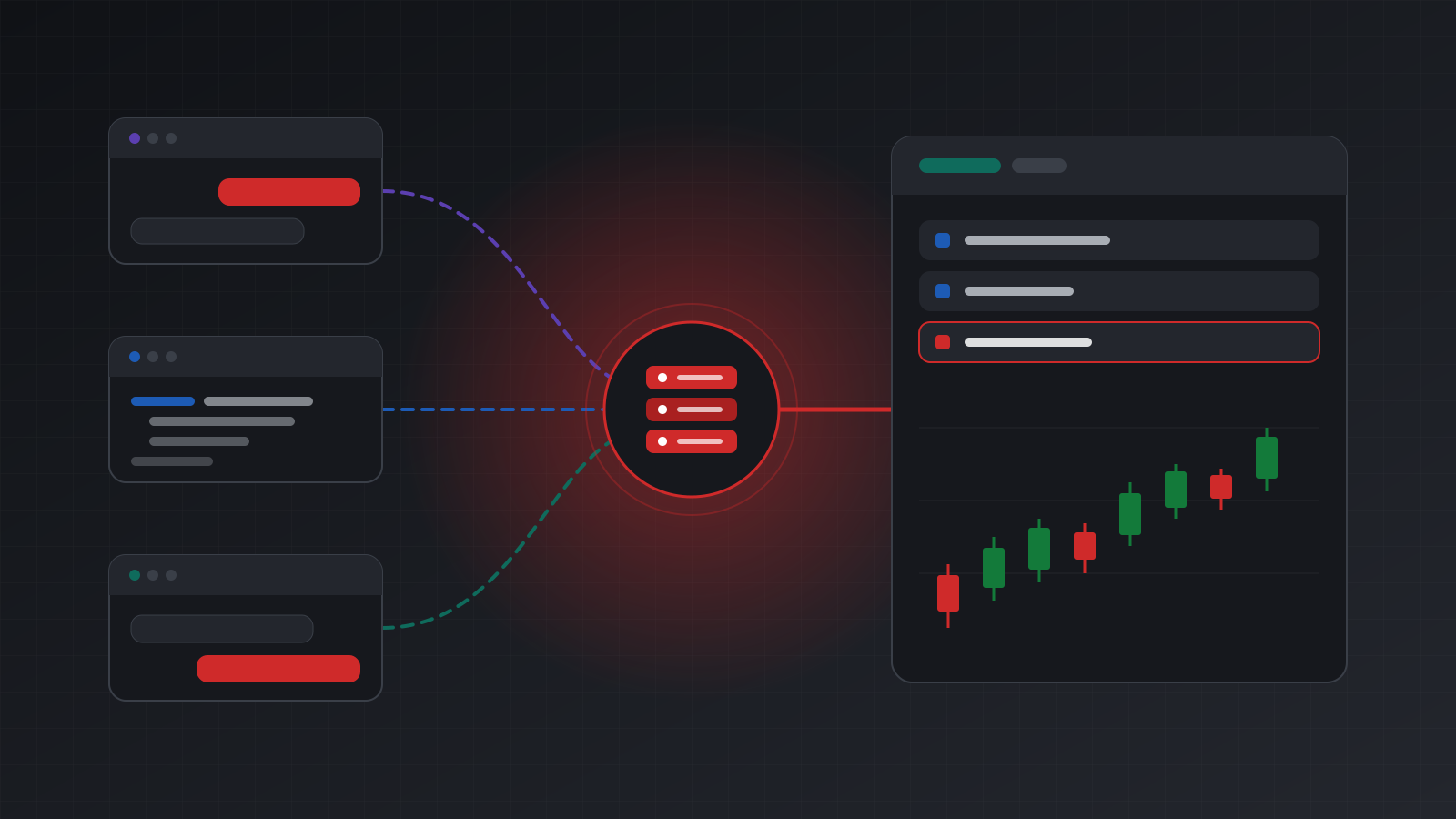
The good news is that this got much easier in 2026. Several consumer AI apps now let you add your own “connector”, which is a remote server that speaks MCP (the Model Context Protocol, an open standard for giving AI apps tools). If a MetaTrader account sits behind such a server, the app can read it and, if you allow it, trade it.
This post lists which apps support that as of October 2026, what “can trade” really means, and what to check first. These products change every few weeks, so treat each app detail below as a snapshot and check the vendor’s own page.
What an AI app needs before it can trade
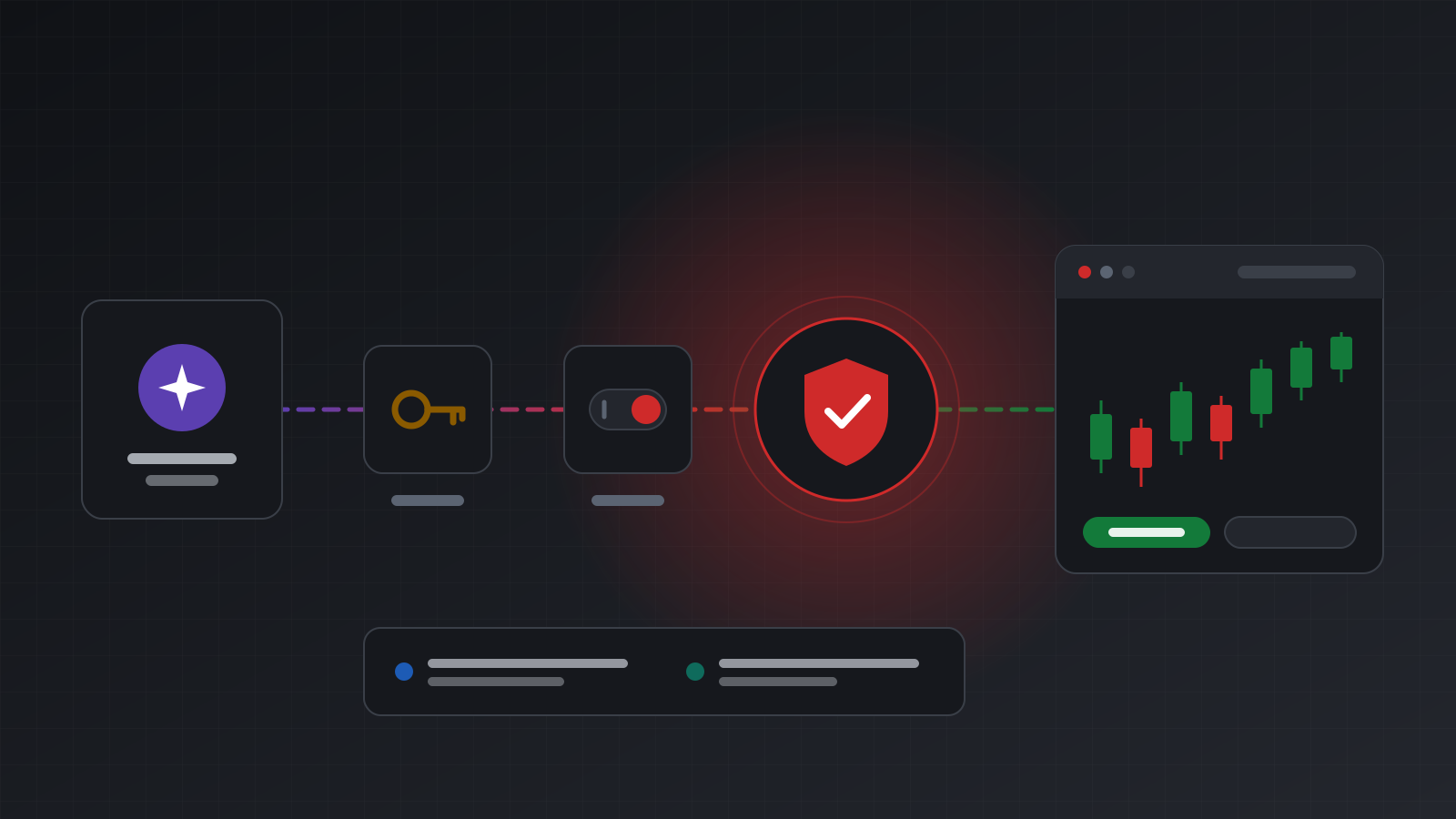
Three things have to be true at the same time:
- A tool that reaches the account. The app must be connected to a server that exposes actions such as “get positions” or “place order”. Without that, the model has nothing to call. A web search or a screenshot of your chart is not a connection to your broker.
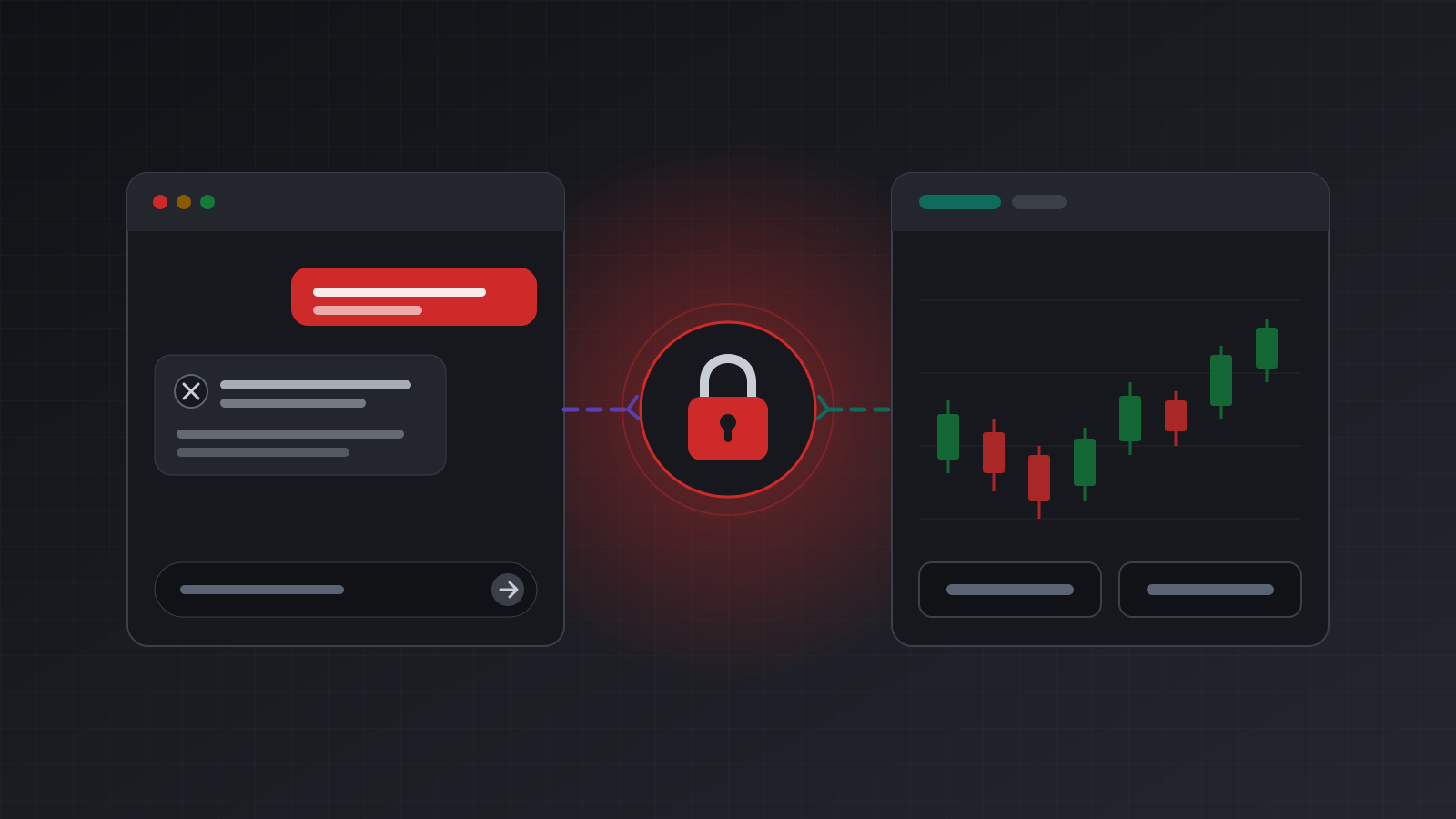
- Permission to change things. Most setups separate reading (balances, positions, prices) from writing (placing, changing and closing orders). Reading is the safe default. Writing should be something you turn on deliberately.
- A confirmation step you understand. The major apps ask you before a tool does something consequential. Know when your app asks, and what it shows you when it does.
If any one of these is missing, the answer to “buy 0.1 lots of EURUSD” will be a polite refusal. That is covered in more detail in why your AI assistant says it can’t trade.
The apps, as of October 2026
The table sums up what each vendor’s own documentation said when we checked in October 2026. “Custom remote MCP” means you can paste the address of a server you choose, not only pick from the vendor’s built-in list.
| App | Custom remote MCP | What to know |
|---|---|---|
| Claude (web and desktop) | Yes, “custom connectors” | Free plan limited to one custom connector; Pro, Max, Team and Enterprise too. Asks you to approve tool use by default. |
| ChatGPT (web) | Yes, add a custom MCP server | ChatGPT requires manual confirmation before write actions. Which plans may use write actions has changed during 2026. |
| Gemini app | Yes, “custom apps” | Per Google: 18 or over, in the US, personal Google Account, English, Keep Activity on. Added on the web. Asks you to confirm write actions. |
| Grok (grok.com) | Yes, custom connectors | xAI’s docs describe adding one by URL. Plan limits and sign-in details are not spelled out clearly. |
| Microsoft Copilot (consumer) | Not found | Microsoft’s support page lists a fixed set of connectors. Custom MCP is offered in the business product through admins. |
| Claude Code, Cursor, VS Code | Yes | Developer tools. Remote MCP over HTTP, with sign-in or a request header. Approval prompts before tools run. |
Claude
Anthropic’s help center says custom connectors using remote MCP are available on the Free, Pro, Max, Team and Enterprise plans, with Free limited to one custom connector. You add them under connector settings in Claude on the web or the desktop app. On Team and Enterprise, an owner adds the connector for the organisation first, then each member connects. The same page warns that custom connectors reach services Anthropic has not verified. See Anthropic’s guide to custom connectors.
ChatGPT
OpenAI’s developer documentation describes adding a custom MCP server from the Plugins area on chatgpt.com, entering its URL and sign-in details, and accepting a risk warning. It also says ChatGPT currently requires manual confirmation before write actions. OpenAI’s help center has, at points in 2026, limited full MCP support (including write actions) to Business, Enterprise and Education workspaces, with individual plans more limited. The menus and plan rules have moved more than once, so check OpenAI’s MCP documentation for your plan before you plan around it. MCP apps added this way were web only when we checked.
Gemini
Google’s help page for the Gemini app describes “custom apps” that connect to an MCP server URL. You add one in the web app under Settings and Connected Apps, and it then works on mobile too. The requirements are strict: 18 or over, in the US, signed in with a personal Google Account (not work or school), English, and Keep Activity turned on. Google says Gemini currently requires manual confirmation for any write action. Source: Google’s Gemini Apps Help.
Grok, Copilot and the developer tools
xAI’s documentation describes adding a custom connector on grok.com by entering an MCP server URL that is reachable from the internet. It does not clearly say which plans include it or how sign-in works for custom servers, so we leave it at that.
For the consumer Microsoft Copilot app, Microsoft’s support page lists a fixed set of services (OneDrive, Outlook.com and some Google services) and no way to add your own server. Microsoft 365 Copilot, the business product, lets admins add custom MCP connectors. We found no consumer option as of October 2026.
Claude Code, Cursor and VS Code all document remote MCP servers over HTTP. Claude Code and Cursor support signing in (OAuth) or a fixed request header such as Authorization: Bearer .... They suit scripted agents more than chat.
What “can trade” really means
An app that supports remote MCP can, in principle, call any tool a server offers. Whether it should depends on settings on both sides.
- On the app side, you decide whether the connector is on in a given chat, and you answer the confirmation prompts. Some apps let you remember an answer for the rest of a chat. Think twice before you do that for an order tool.
- On the server side, the service that holds your account decides what this connection may do. A good server lets you pick which accounts the app may see and whether it may only look or also trade, and lets you cut it off at once.
A confirmation prompt is a useful last check, but it is a check by you, in the moment. Limits such as “never more than 1 lot” or “stop after a 3% daily loss” have to live somewhere that does not depend on the model or on you clicking the right button.
A terminal on your computer, or a hosted one
In July 2026, MetaTrader 5’s own release notes (build 6060) added native MCP support to the desktop terminal, so a local AI tool can talk to the terminal on your computer. That is a real step forward. It also means the agent can only reach the account while that computer and terminal are running. The release notes are for MetaTrader 5; MT4 is a separate, older platform.
A hosted terminal runs in the cloud and operates around the clock, so a remote MCP server can reach it from any supported app at any time. The trade-off is that you are trusting the host, which is why the next section matters.
Questions to ask before any app trades for you
Use this checklist for whichever app and server you choose:
- Scope. Can I limit the app to specific accounts, and to read-only access?
- Duplicates. If the model repeats itself or a request times out, can the same order be placed twice? Look for idempotency: the same request key returns the first result, never a second order.
- Unclear outcomes. If the broker connection drops mid-order, does the server say “unknown”, or does it guess? An honest “unknown” is far safer than a wrong “done”.
- Stop button. Can I stop the app immediately, without logging into a terminal?
- Your rules. Where do size and loss limits live? If the answer is “in the prompt”, that is not a limit.
- Record. Is there an audit log that shows who placed each order and why?
- Time. Are times labelled as UTC or broker server time? They are often different.
Practise on a demo account before you risk money, whatever app you use.
Doing this with Tickwire
Tickwire hosts one real MT4 or MT5 terminal per trading account and offers an MCP server for AI apps. Its tools cover listing accounts, checking health, reading positions, orders, quotes and candles, and placing, changing and closing orders.
- Claude: we connected the Claude app to Tickwire through sign-in on 20 October 2026.
- ChatGPT: the steps on our AI agents page follow OpenAI’s documentation.
- Other apps: apps that support remote MCP servers with sign-in, and developer tools that let you set a request header (with an agent key,
twag_...), can connect.
When you connect, you sign in with Tickwire, choose the accounts, and choose “Look only” or “Look and trade”. Every order carries an idempotency key and a reason, outcomes are applied, rejected, held or unknown, and kill switches stop an agent at once. Tickwire has no built-in size or loss limits; those belong in your own pre-trade hook or code. More on the tools on the MetaTrader MCP server page, and on outcomes in idempotency.
Key points
- An AI app can trade only through a tool connected to a real account, with your permission.
- As of October 2026, Claude, ChatGPT, Gemini and Grok document custom remote MCP connectors; consumer Copilot does not appear to.
- Plan rules and menus change often. Check the vendor’s page on the day you set up.
- Confirmation prompts help, but real limits must live outside the model.
- Ask about scope, duplicates, “unknown” outcomes, a stop button and an audit log before you allow trading.
Trading carries risk, and you can lose money. This post explains software and how it behaves; it is not investment advice.